

Subscribe to our one-month free trial, without commitment!



With AssisTime, you can invoice your clients in just a few clicks. But did you know you can also group several appointments on a single invoice? It's handy for clients you bill every two weeks or at the end of the month, or for a company that pays for its employees!
Here are two ways to do it.
Open your client's record and go to their history (Contact record, History, see this article). Click Invoice appointments. A window shows this client's appointments from today and earlier that aren't on any invoice yet, with their amount before taxes:
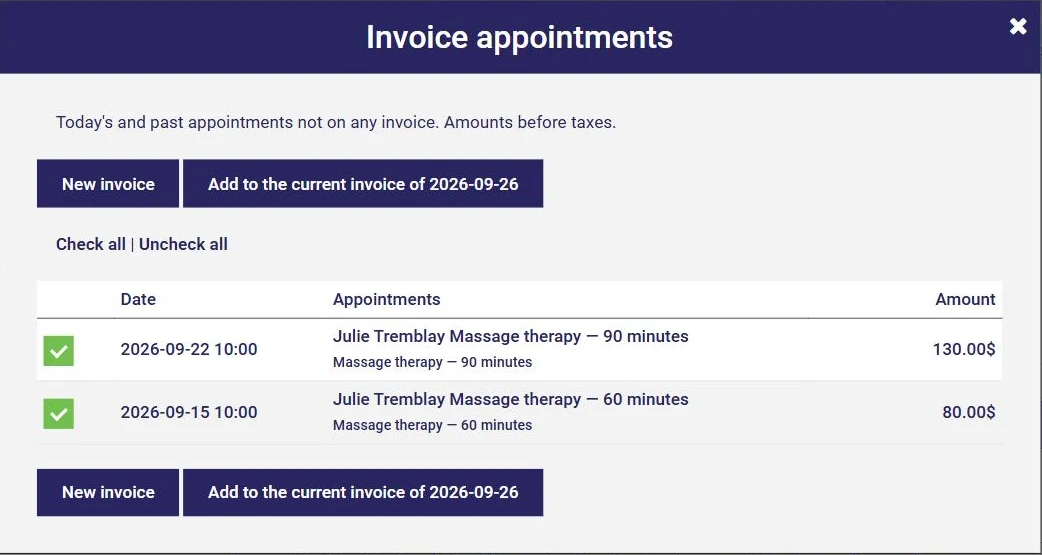
Check the appointments to invoice (the Check all and Uncheck all links can help), then click New invoice. If your client already has an invoice in progress, a button lets you add the appointments to it instead.
The invoice opens with one dated line per appointment, with the products and services associated with each appointment type:
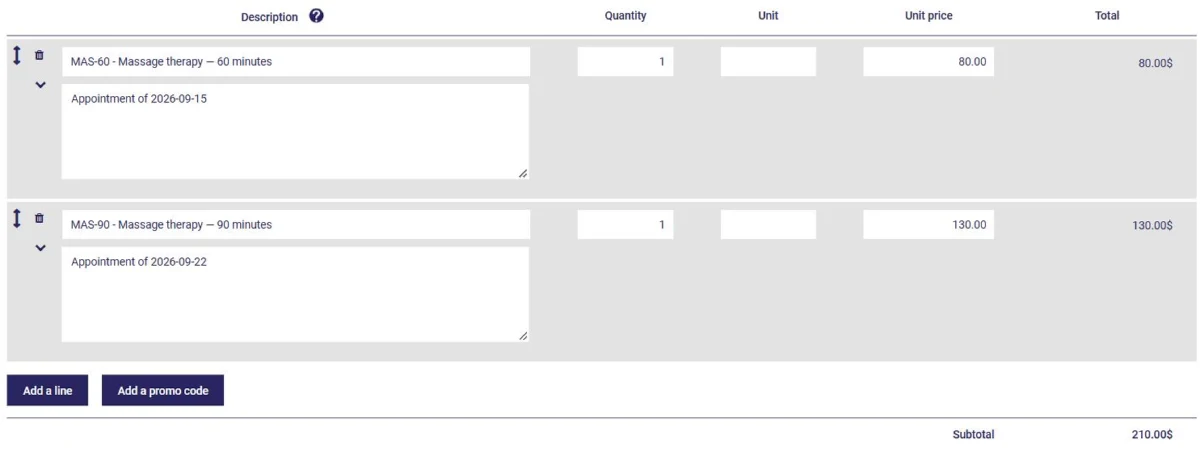
Check it over, then click Complete. Invoiced appointments disappear from the window, so you can't accidentally invoice them twice.
Prefer to add each appointment as it happens? When you invoice an appointment (see this article), click Save for later instead of Complete. The invoice is kept in progress; it doesn't have a number yet, as one will be assigned at the end.
The next time you click Invoice in one of this client's appointments, AssisTime will offer to add the appointment to the invoice in progress.
You'll find your invoices in progress under Accounting, Sales, Resume:
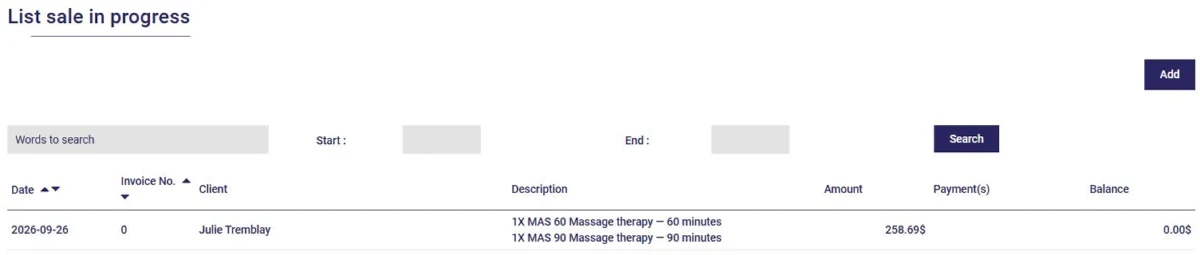
Click the invoice to open it, add more lines with Add a line if needed, then complete it when you're ready to send it to your client.
That's it! You now know how to group several appointments or services on a single invoice. To learn more about invoicing, read the article Create Your Invoices Quickly and Easily.
Subscribe to our one-month free trial, without commitment!
You will be charmed by the interface and the ease of use!
