

Subscribe to our one-month free trial, without commitment!



In the previous articles, you saw that a project can be broken down into tasks. Splitting a project up gives you a more precise picture of where your time and costs go: you'll know whether your planning was accurate, and you'll be able to better estimate your future projects. Discover all the secrets of tasks in this article from our project management series.
Open the project you want to break down and, in the Tasks tab, click Add a task. The task form opens. The left side is similar to a project's (see this article): title, description, project and priority. The right side is where you add your resources (see this article).
Let's look at the elements specific to tasks:
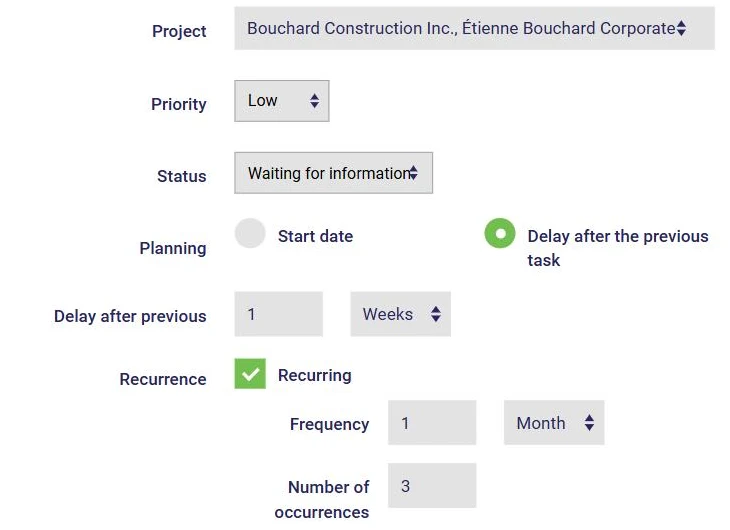
Choose the status that matches your task: In progress, Blocked (for example, if it depends on another task), Awaiting information, Awaiting approval, Completed or Cancelled. Each status has its own colour in the project's Gantt chart. You can also adapt the statuses to the way you work, under Projects, Customize, Task statuses.
You have two options:
In both cases, the end date is estimated automatically based on the task's duration and the availability of the people assigned. If your plans change, the project's Reschedule button recalculates all the dates at once.
Does a task come up regularly, like a monthly follow-up? Check Recurring, then specify the frequency (daily, weekly, monthly…) and the number of occurrences. In our example, three follow-up tasks will be created, one month apart.
Finally, the Actions section at the bottom of the form sets the types of actions you and your employees can check when logging your time on this task.
Click Save: your task is created! Repeat as often as needed.
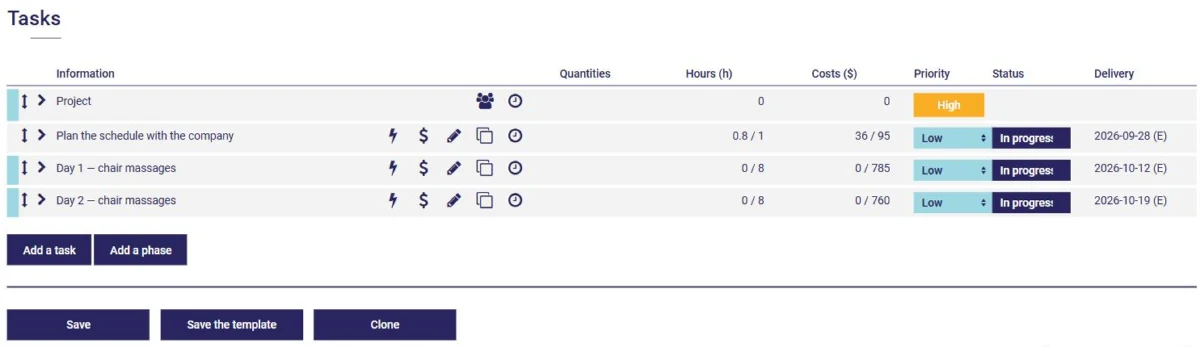
In the project's Tasks tab, you can:
With AssisTime, your projects are broken down precisely to make your work easier!
Subscribe to our one-month free trial, without commitment!
You will be charmed by the interface and the ease of use!
