

Subscribe to our one-month free trial, without commitment!



Do you need to keep certain information in your client records, but the standard AssisTime record doesn't have the fields you need?
No problem! Create your own custom fields for your client records!
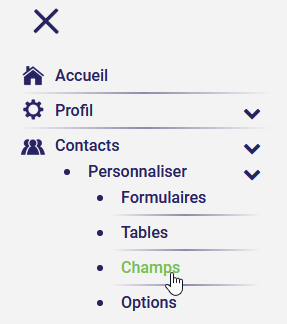
To create your custom fields, go to the Contacts - Customize - Fields menu:
You can then create your fields by giving them a name and choosing their type. There are 6 field types, similar to the field types available in forms. To learn more about the different field types, see the article Save Time and Money by Moving Your Paper Records into AssisTime!
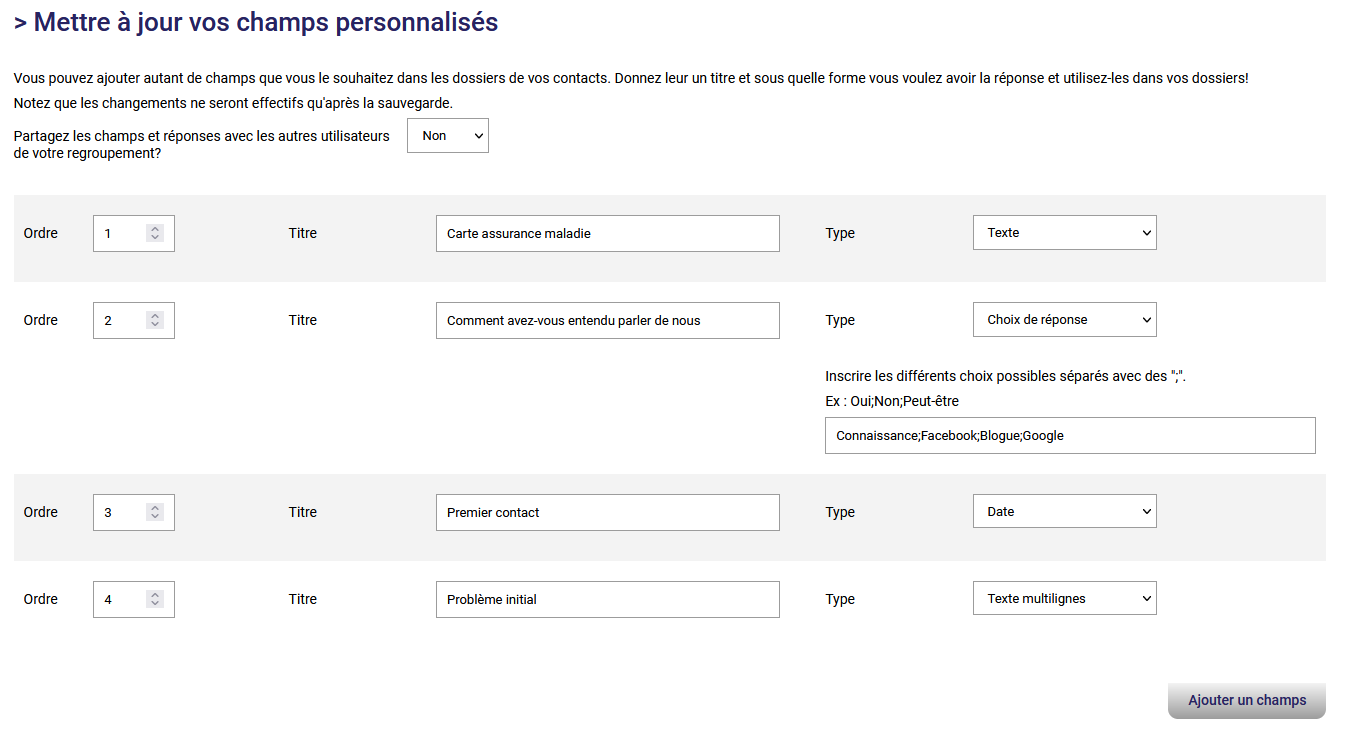
Note that you can choose the order of the fields, and delete the ones you no longer need, using the drop-down menu on the right.
Finally, if there is more than one user in your group and you share your contacts, you can decide whether or not to share your custom fields, and the information they contain, using the drop-down menu just before the Save button.
To fill in the fields you've just created, simply select one of your contacts: the fields appear between the address fields and the phone and email fields. Just fill them in and save the record.
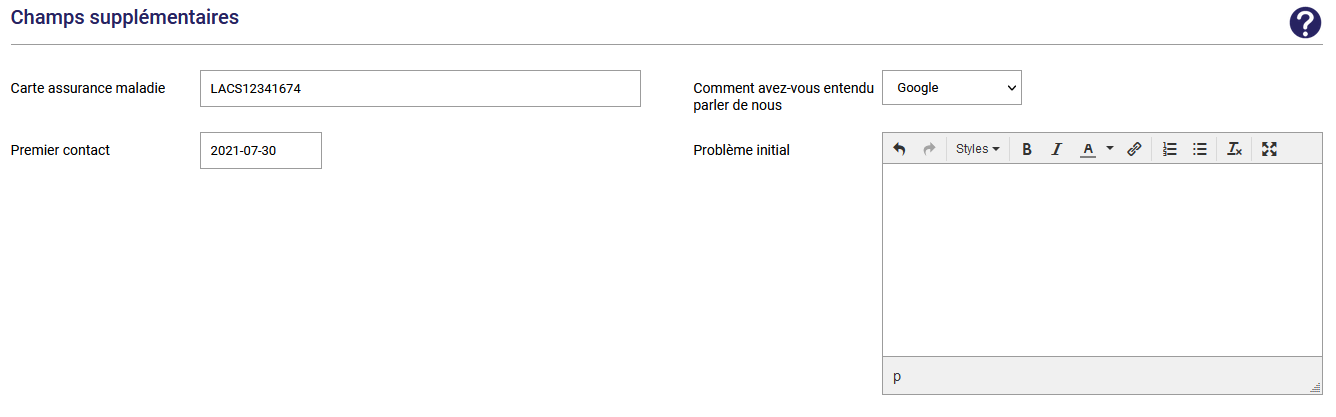
Your client records are now complete and contain all the information you need to do your job well!
Subscribe to our one-month free trial, without commitment!
You will be charmed by the interface and the ease of use!
