

Subscribe to our one-month free trial, without commitment!


Want to send newsletters to your clients about what's new, your promotions or your tips?
AssisTime gives you two ways to do it: directly in AssisTime with the Newsletter module, or by exporting your clients' email addresses to your favourite mailing platform.
In this article, we'll look at both methods.
With the Newsletter module (available as an add-on to your subscription), you create and send your newsletters without leaving AssisTime. You'll find it in the main menu, under Newsletter.
Start by creating a mailing list: go to Newsletter, Mailing lists, then click New list.
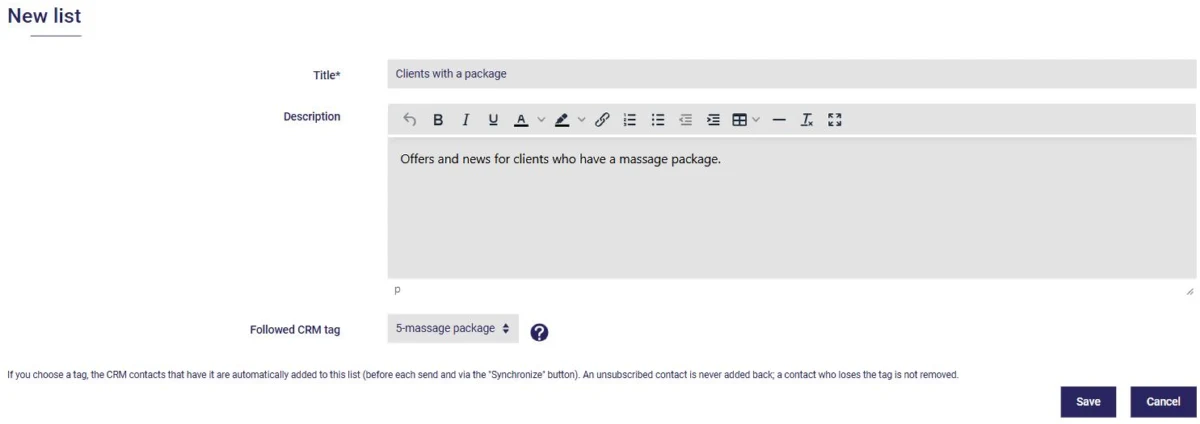
You can link the list to a contact type in your CRM (see this article): contacts with that type are then automatically added to the list before each mailing. A contact who has unsubscribed is never added back. You can also add subscribers one by one, or import all the contacts of a given type at once.
To grow your list, the Sign-up forms menu lets you create a form to put on your website: each new subscriber is added to your list and to your contacts.
Next, click New newsletter. Choose the mailing list, enter the subject and the sender, then build your content with blocks: text, image, button, divider and spacer. Drag the blocks to reorder them; the preview on the right updates as you go:
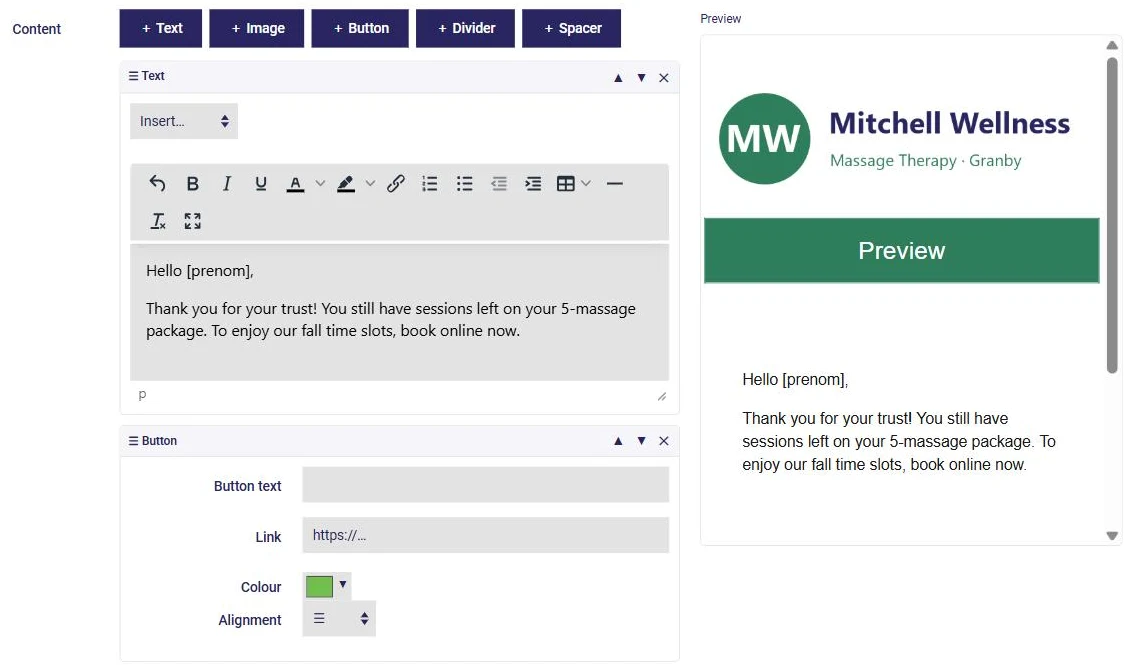
Personalize your message by inserting [prenom], [nom] or [entreprise] in a text block: each subscriber will receive an email addressed to them by name. Your logo appears at the top of the newsletter, and an unsubscribe link is automatically added at the bottom of every email.
Before your first mailing, you'll need to set up your sending domain (your business email address): AssisTime walks you through this step, which helps your newsletters land in your clients' inbox rather than their spam folder. You can then send yourself a test, and send the newsletter to your list.
Already using a mailing platform such as Mailchimp? Go to Contacts, Reports, Email addresses. Uncheck All contacts to choose the contact types you want, then click Generate the report:
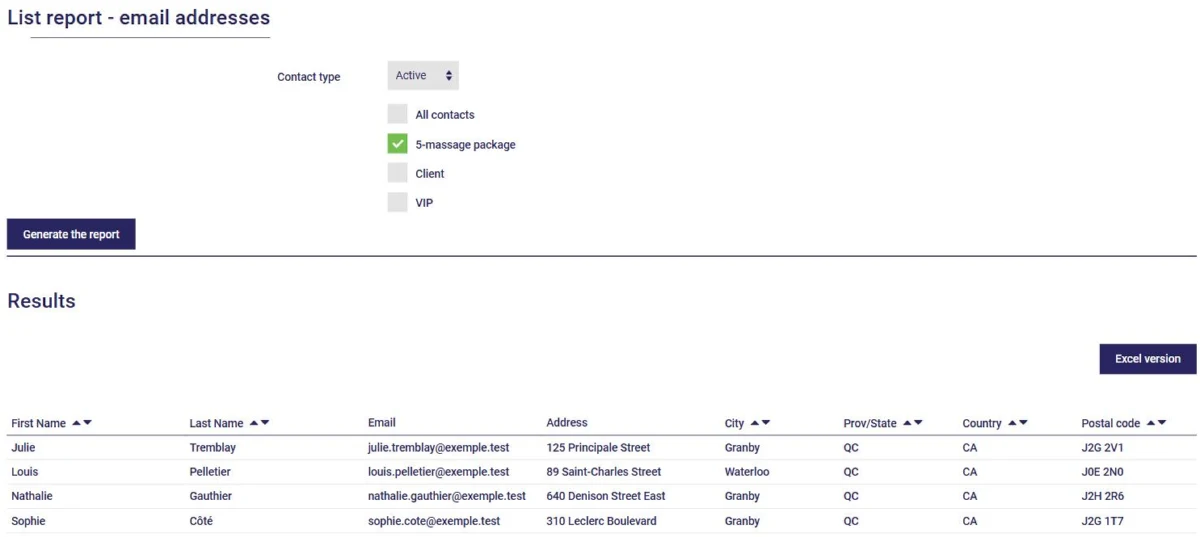
The report lists your contacts with their contact details, followed by their email addresses separated by semicolons, ready to copy and paste. The Excel version button also lets you download the list to import it into your platform.
As a reminder, sending commercial email is regulated by law (Canada's Anti-Spam Legislation and, in Quebec, Law 25). Make sure you have your clients' consent before sending them promotional emails. The Newsletter module reminds you of these rules and includes a Compliance page that summarizes them.
You now know how to use AssisTime and your contact categories to send out your newsletters!
Subscribe to our one-month free trial, without commitment!
You will be charmed by the interface and the ease of use!
