

Subscribe to our one-month free trial, without commitment!



Do you feel swamped by numbers and calculations when you prepare your tax report?
Does the mere thought of doing your tax report make you want to hide under your desk?
AssisTime can help by making your business's tax management a whole lot simpler!
In this article, you'll see how to manage your taxes in 5 easy steps.
First, you need to tell AssisTime that you collect taxes. Open the main menu (the three-line icon at the top left), then go to Profile, Profile and business. The same screen is also available under Accounting, Taxes, Settings.
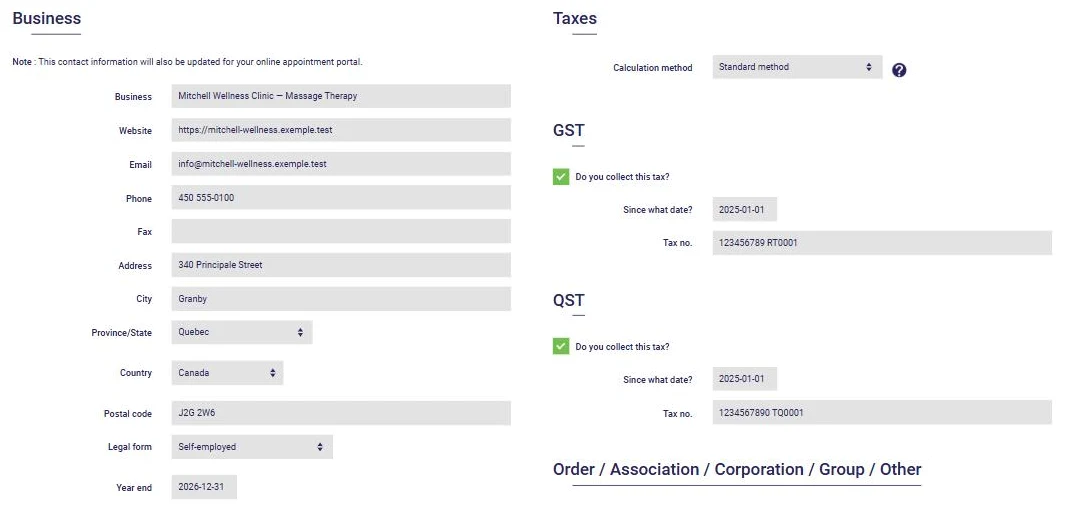
In the Taxes section, for each tax you collect (GST and QST), check the Do you collect this tax? box, then enter the date you started collecting it and your tax number.
Also choose your calculation method: the regular method, or the quick method if you are registered for it with the governments. AssisTime will take it into account in your report.
While you're there, check your business contact details on the left: they will appear on your invoices, along with your tax numbers.
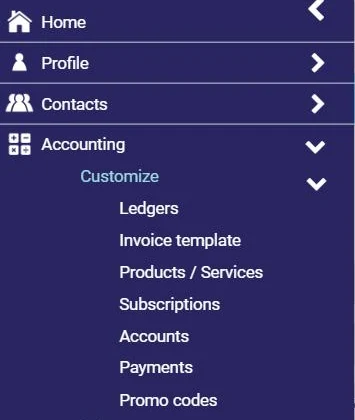
Now you need to indicate whether you collect taxes on the products and services you sell. Go to Accounting, Customize, Products / Services:
For each product and service, choose Yes or No for the GST and for the QST:
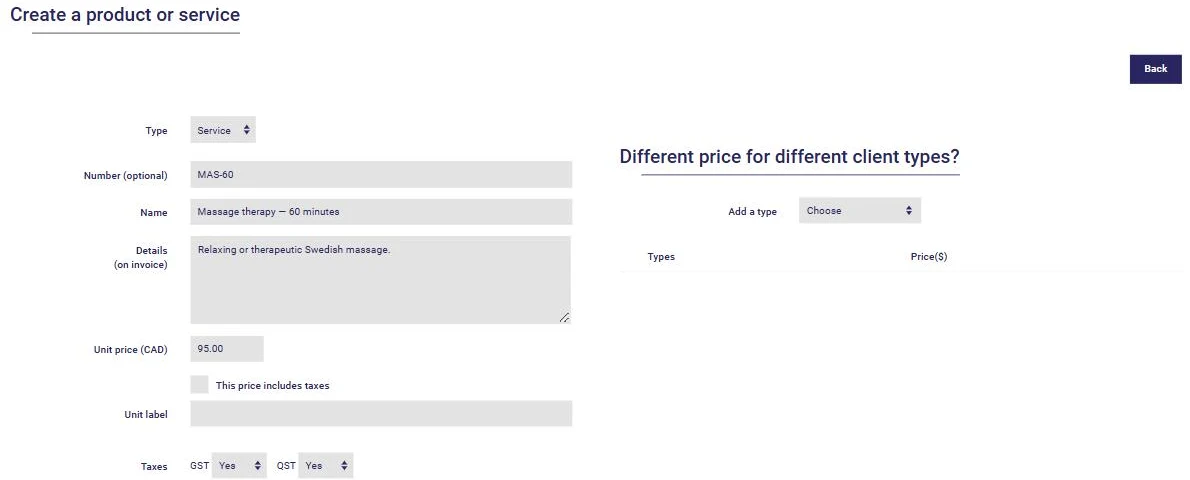
If you prefer to display your prices with taxes included, check This price includes taxes: AssisTime will work the taxes out backwards from the price (see this article). Ask your accountant whether your products and services are taxable.
Simply use AssisTime to create your invoices and enter your expenses! The taxes you collect on your sales and the taxes you pay on your expenses are calculated and recorded automatically.
Now for the step that gives you cold sweats… Take a deep breath and read on!
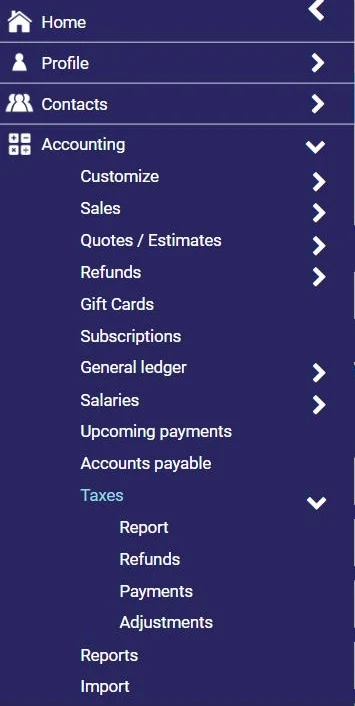
To generate your tax report, go to Accounting, Taxes, Report:
Just enter the start and end dates of the period, then click Generate the report. Check Include the previous balance if you want to account for amounts still owing or receivable from previous periods.
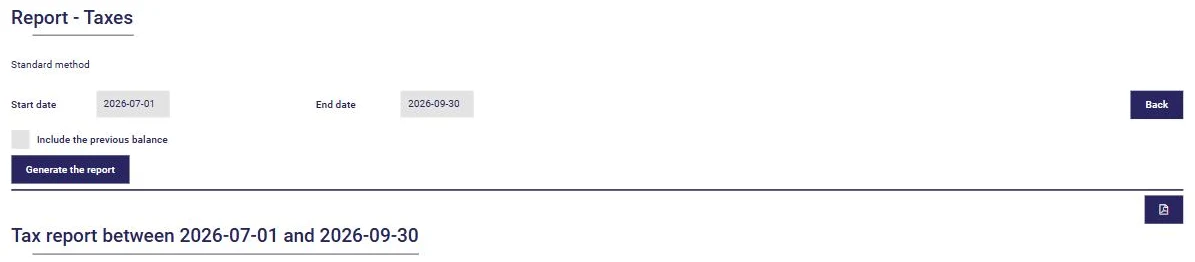
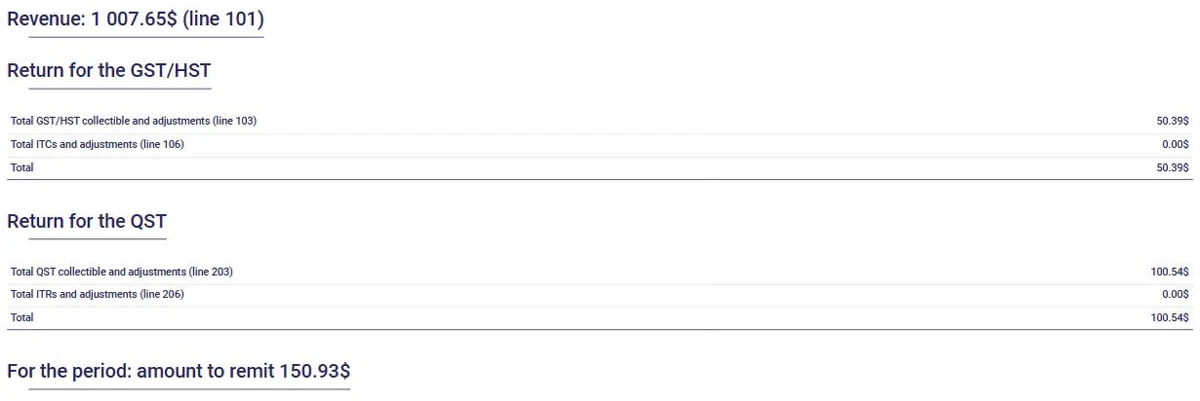
The report gives you the amounts to enter on your tax returns, with the line numbers of the government forms: your total revenue (line 101), the GST collected and your input tax credits (lines 103 and 106), the QST collected and your input tax refunds (lines 203 and 206), and then the amount to remit for the period.
Below these totals, the report breaks down the taxes collected and the credits, sale by sale and expense by expense, so you can check everything. You can also save the report as a PDF with the button at the top right.
Of course, after your tax report, you can expect to make a payment or receive a refund. To record it, go to Accounting, Taxes, then Payments or Refunds as the case may be. The Adjustments option lets you correct an amount if needed.
Then just enter the date, the tax (GST or QST), the amount and the payment method.
Feeling better?
Doing your tax reports in AssisTime is not only fast, it's also much less stressful!
Subscribe to our one-month free trial, without commitment!
You will be charmed by the interface and the ease of use!
