

Subscribe to our one-month free trial, without commitment!



Do you need to keep documents about your clients but find it hard to file them properly? Or worse, to find them when you need them?
Did you know that AssisTime lets you attach these files directly to your client records?
In this article, you'll see how to add files to your client records, organize them and find them easily.
First, open the client's record, from your contact list or with the search tool. In the blue bar at the top of the page, hover over Contact record, then click Attached files.
To add one or more files, click the Add button at the top right.
Drag your files straight into the dotted rectangle, or click Browse to choose them on your computer. You can upload several at once; a green check mark confirms that each one was uploaded:
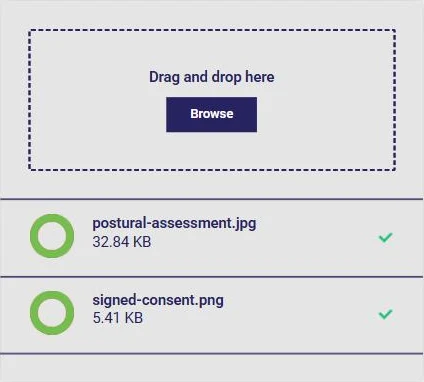
The accepted file types (PDF, images, Word, Excel and OpenDocument documents) and the maximum size are shown below the upload area.
Back on the record's file list, each file is shown with a preview, the date it was added, a description and a category:
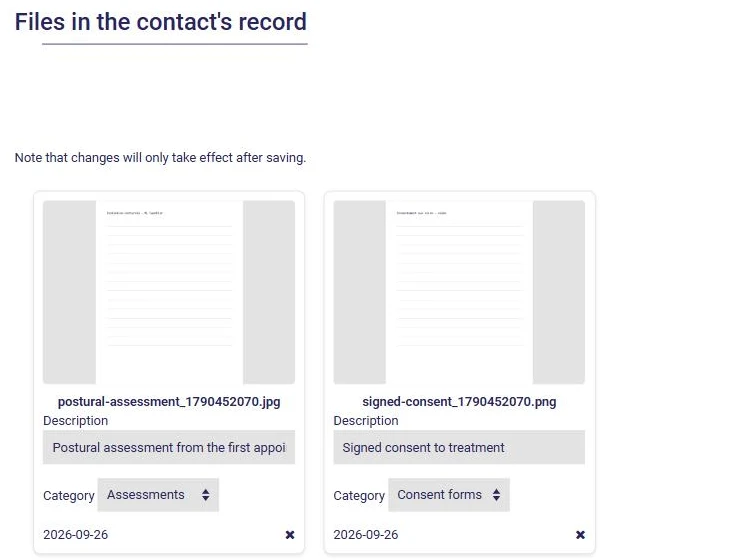
Don't forget to click Save at the bottom of the page to record your descriptions and categories.
The Categories button lets you create your own categories and choose the order in which they appear. You can also mark the files in a category as confidential: they are then visible only to the employee who uploaded them, and never appear in the PDF export of the record handed over to a third party.
When you fill out a form for a client (see this article), you can access their files without leaving the form: simply click the Attached files tab above the form, then return to your form by clicking the leftmost tab, without losing your work.
With AssisTime, all the information in your client records is gathered in one place. No more tedious searching: you quickly find what you're looking for!
Subscribe to our one-month free trial, without commitment!
You will be charmed by the interface and the ease of use!
