

Subscribe to our one-month free trial, without commitment!



A preferred rate for your VIP clients, a reduced price for clients who bought a package, a student rate? With AssisTime, it's very easy: just assign a type to your clients and link a price to it in your products and services.
Open the client record and, on the contact's record, add the type you want in the Types section (for example VIP). Have several clients to identify? In your contact list, click Select multiple contacts, check the clients, choose Add a tag, enter the type and click Confirm.
Next, go to Accounting, Customize, Products / Services, and click the product or service you want to edit. In the Different price for different client types? section, choose a type from the Add a type list, then enter the price for that type:
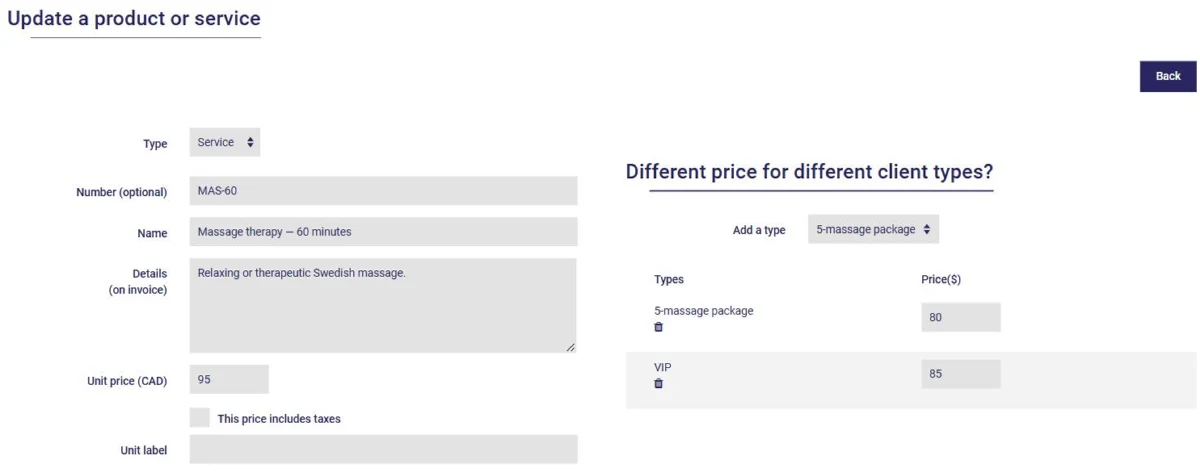
Click Save. In our example, the 60-minute massage is billed at $85 to VIP clients and $80 to clients who have a 5-massage package. All other clients still pay the unit price of $95.
The client-type price is used automatically when you add the product or service to an invoice for that client, when you invoice an appointment, and on your online appointment booking portal. Does a client have several eligible types? The lowest price applies.
To go further with your best clients, find out how to reserve time slots on your portal for them in the article How to Pamper Your VIP Clients
Subscribe to our one-month free trial, without commitment!
You will be charmed by the interface and the ease of use!
