

Subscribe to our one-month free trial, without commitment!



Your client appointments are in AssisTime, but your personal life is in Google Calendar or Outlook: the dentist, the school meeting, Friday dinner. The result: you check two calendars before accepting an appointment, and sometimes a client books online right when you're at the garage.
AssisTime's synchronization with Google Calendar and Outlook 365 has been completely reworked to solve this problem. It now works both ways, follows changes and deletions, protects your private appointments and can even create the video conference link for your remote appointments.
Syncing happens on its own when you open your calendar or your home page, and when a client books online. There's nothing for you to trigger.
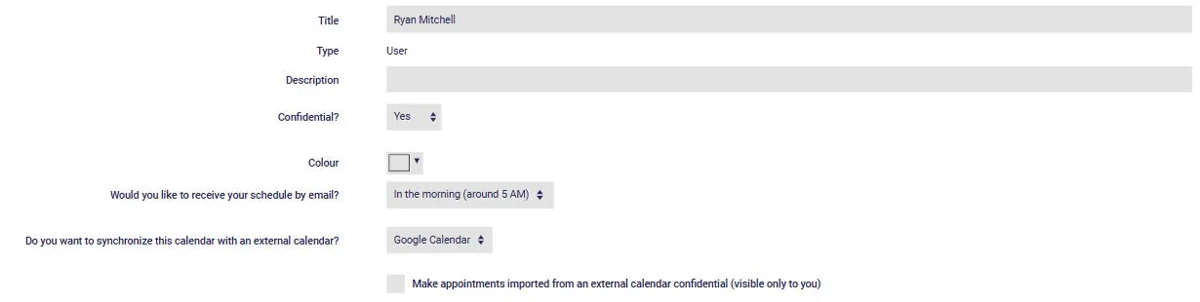
Under Calendar > Settings > Calendars, open your calendar. For the question Do you want to synchronize this calendar with an external calendar?, choose Google Calendar or Outlook 365, save, then follow the steps to connect your account and choose the calendar to sync. Each calendar syncs with one service at a time.
If you use Google Calendar, make sure your Google calendar's time zone matches the one selected in AssisTime: otherwise, appointments created directly in Google could arrive at the wrong time. AssisTime warns you if the two don't match.
Do you work as part of a team, in a clinic or a spa? Your colleagues don't need to see the name of your doctor or your personal appointment. On the same page, check Make appointments imported from an external calendar confidential (visible only to you).
Your colleagues then see a simple "Busy (private)" block at the time of the event: they know you're not available, without seeing the details, and they can't open, move or delete it. You still see everything.
Another option, just below, solves a common annoyance: all-day notes (a reminder, a birthday, a vacation spread over several days) that used to block your availability for the whole day. Check it, and those grey events stay visible in your calendar without preventing clients from booking.

Do you offer remote sessions? No more creating a meeting and copying the link by hand for every client. Once synchronization is on:
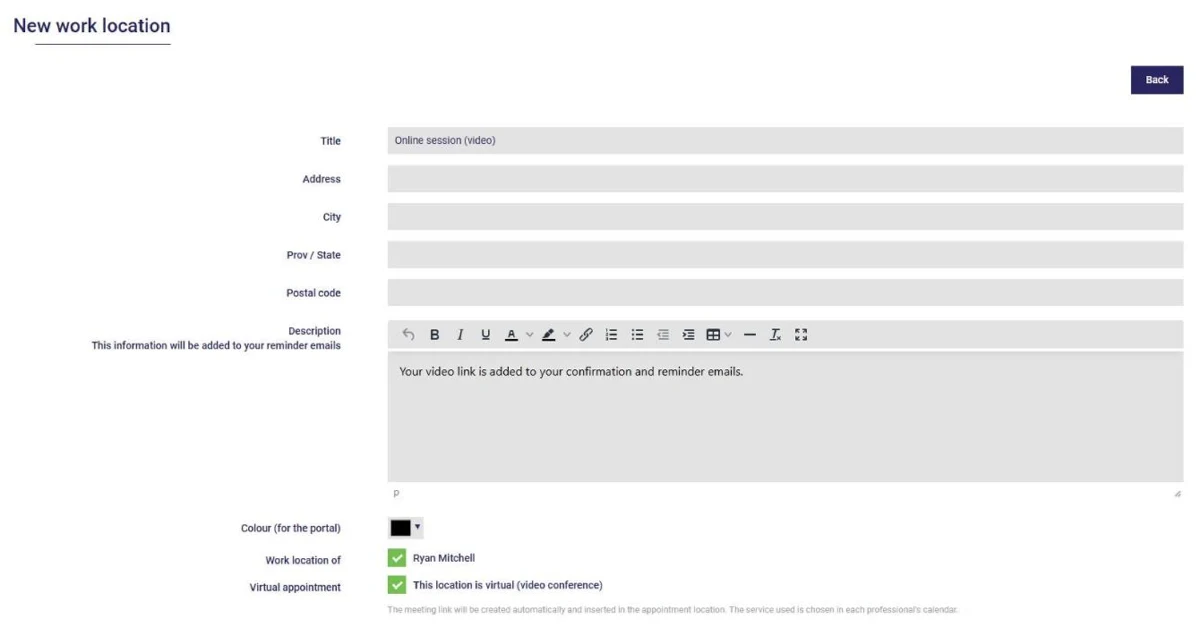
If the appointment is moved, the meeting follows, since it's part of your calendar event. Microsoft Teams requires a Microsoft 365 work or school account. Prefer your own virtual room? Choose Permanent meeting link (that I provide) instead and paste your link once and for all.
For anyone juggling two calendars: the self-employed professional who manages their personal life in Google or Outlook, the team already working with Microsoft 365, or the therapist who offers both in-person and remote sessions. Already using Google sync, as described in our 2019 article How to sync the AssisTime calendar with Google Calendar? The improvements apply automatically.
Discover everything AssisTime's online calendar and online booking portal can do. Not a client yet? Try AssisTime for free.
Subscribe to our one-month free trial, without commitment!
You will be charmed by the interface and the ease of use!