

Subscribe to our one-month free trial, without commitment!


Would you like to see your AssisTime appointments in your phone's calendar app, even without an Internet connection? Or maybe you keep your personal appointments in Google Calendar and want to stop clients from booking over them?
Did you know you can synchronize the AssisTime calendar with Google Calendar, or with Outlook 365?
In this article, you'll see how to turn on synchronization and how it works.
Obviously, you need a Google account (a Gmail address or a Google Workspace business account) to synchronize with Google Calendar, or a Microsoft 365 account to synchronize with Outlook.
Note that a calendar can only be synchronized with one external calendar at a time, and that only users' calendars can be synchronized (not those of rooms or equipment, for example).
Open the main menu (the three-line icon at the top left), then go to Calendar, Customize, Calendars, and click your calendar. In the Do you want to synchronize this calendar with an external calendar? field, choose Google Calendar or Outlook 365:
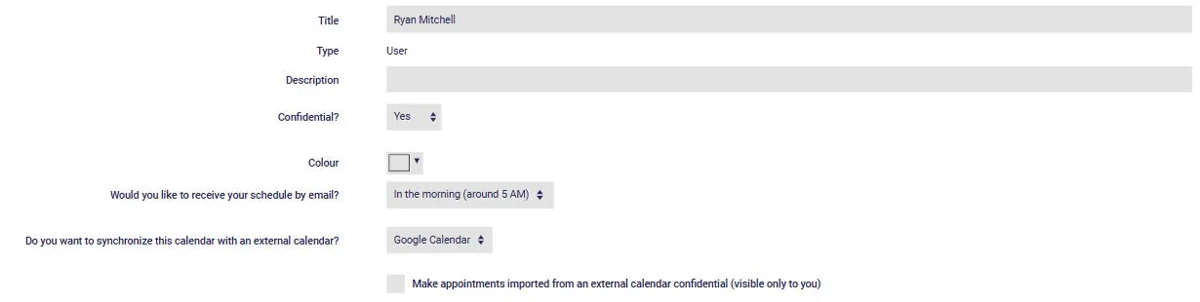
Just below, you can check Make appointments imported from an external calendar confidential: your personal appointments imported from Google or Outlook will block off your schedule, but only you will see their details. Handy if you work as a team!
Click Save: a page then offers to turn on synchronization. Click the Enable synchronization with Google Calendar button (or the Outlook one). The rest happens on Google's or Microsoft's side.
You're then taken to the Google (or Microsoft) sign-in page. Choose the account to synchronize with AssisTime, or sign in if no account is open. You're then asked to allow AssisTime to access your calendar: accept.
Back in AssisTime, your upcoming appointments are copied to your external calendar a first time. This can take a few moments if you have a lot of appointments.
With Google Calendar, a Time zone field is then added to your calendar settings: make sure it matches the time zone of your Google Calendar. AssisTime will warn you if the two don't match.
Once synchronization is authorized, here's how AssisTime and your external calendar stay in sync:
To stop synchronization, go back to your calendar settings and choose No. You can then choose whether or not to delete the synchronized appointments from your external calendar.
This way, you can access your AssisTime calendar at any time, even without Internet on your phone or tablet, and your clients can no longer book during your personal appointments!
And if you offer virtual meetings, AssisTime can also automatically add a video conference link to your virtual appointments, such as Google Meet if your calendar is synchronized with Google, or Teams if it's synchronized with Outlook: just choose the service in the Video conference field of your calendar settings.
Subscribe to our one-month free trial, without commitment!
You will be charmed by the interface and the ease of use!
