

Subscribe to our one-month free trial, without commitment!



Is your head cluttered with details to remember? So much so that you're afraid of forgetting something?
Clear your mind and reduce your stress with AssisTime follow-ups!
A follow-up is a dated reminder, usually tied to a client: calling a client back to see how they're doing, sending a receipt, confirming a package… In this article, you'll see how to create your follow-ups and how to handle them.
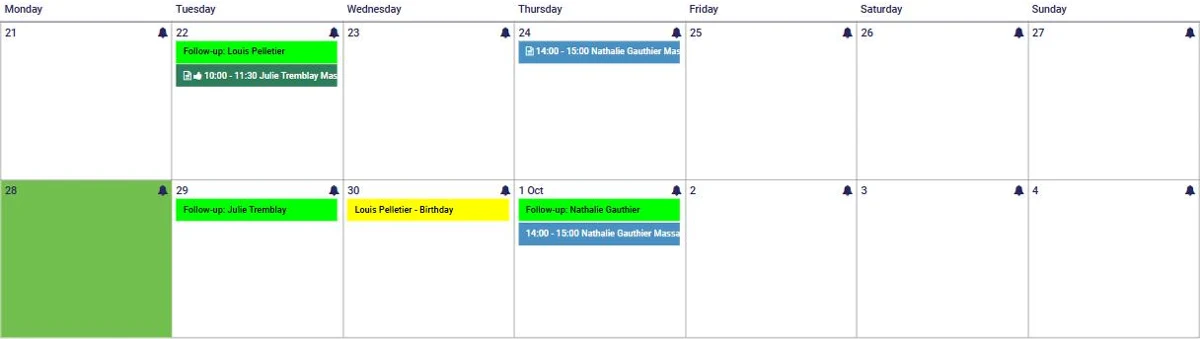
In your calendar, each day shows a small bell at the top right of its box. Click the bell of the day you want to create a follow-up on that date. Your follow-ups then appear in the calendar, with the client's name:
The follow-up form opens with the date you chose:
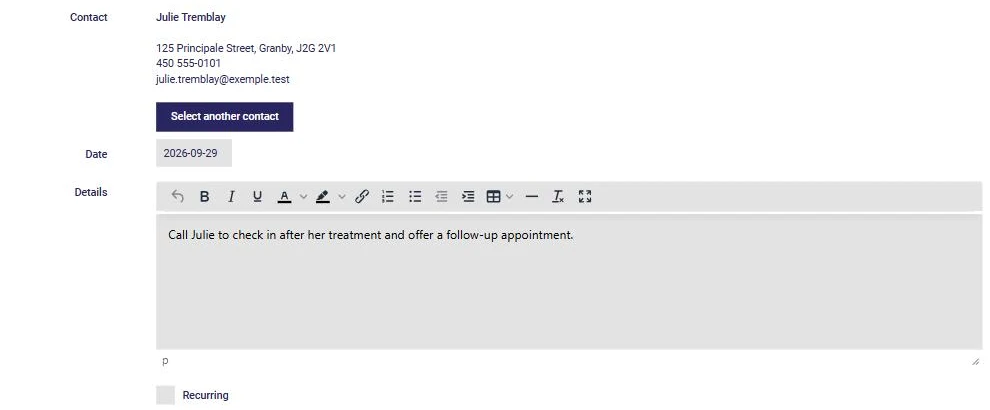
Search for the client by typing part of their name, then select them; you can also create a new contact right from this form. Then enter the details of your follow-up and click Save this follow-up.
Two handy options are also available:
Are you in a client record? Click Follow-up, on the right of the blue bar at the top of the page: the form opens with that client already selected. The client's follow-ups then appear in their history (Contact record, History).
Your follow-ups are also shown on the AssisTime home page, under your Upcoming events:
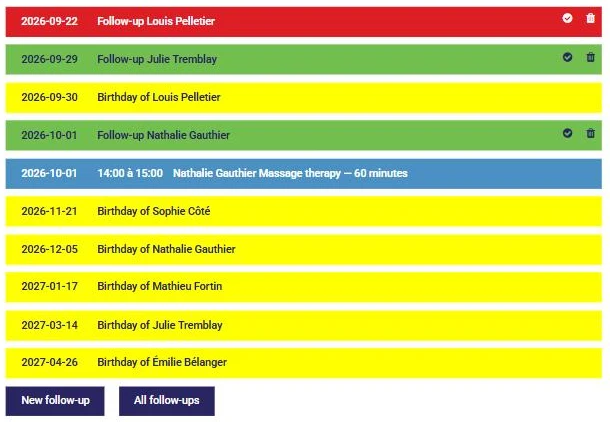
Your upcoming follow-ups are shown in green. Those whose date has passed and that haven't been handled stay on the list, in red: there's no way to forget them! Below the list, the New follow-up and All follow-ups buttons let you create one or view them all.
Once you've done your follow-up, click the check mark to the right of it on the home page. You can then add a note (for example, what your client told you), and click Complete. The follow-up disappears from your events and becomes a note dated today in your client's history.
You can also open the follow-up and check Is this follow-up completed?: you can then specify the type of contact (call, email, meeting…) and its details. The trash can icon deletes the follow-up.
You can also receive your schedule, including your follow-ups, by email every day. Go to Calendar, Customize, Calendars, and click your calendar. In the Would you like to receive your schedule by email? field, choose to receive it in the morning (around 5 a.m.) or the evening before (around 5 p.m.):
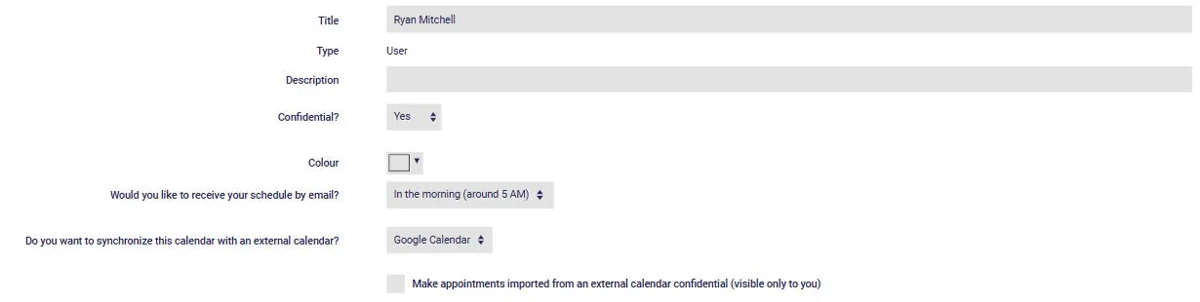
As on the home page, follow-ups whose date has passed keep appearing until they are handled.
By letting AssisTime manage your follow-ups, you'll have a clearer head and less stress! You'll be able to put your energy into what you do best.
Subscribe to our one-month free trial, without commitment!
You will be charmed by the interface and the ease of use!
