

Subscribe to our one-month free trial, without commitment!


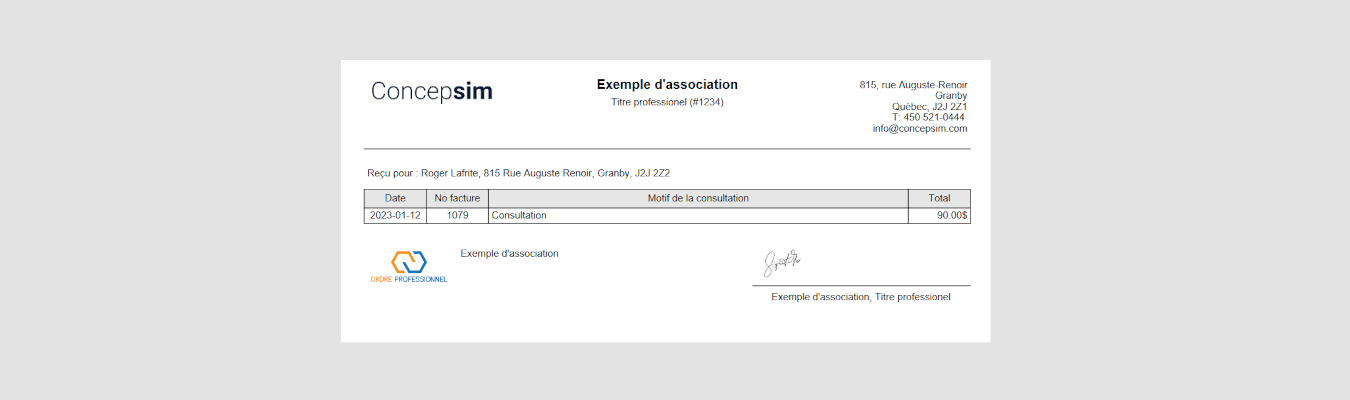
Did you know that AssisTime lets you create professional receipts in just a few clicks, for example so your clients can get reimbursed by their insurance?
Here's how to enter the information for your professional order, association, corporation or group, and then how to produce your receipts.
Open the main menu (the three-line icon at the top left), then go to Profile, Profile and business. Look for the Order / Association / Corporation / Group / Other section:
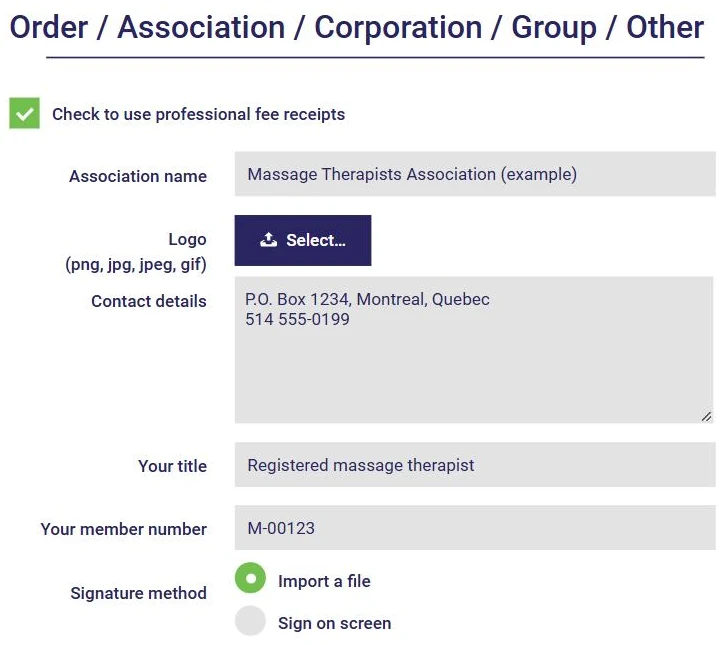
Just below, the Detailed receipt option lets you show a breakdown of the services on your receipts (see below). Then click Save at the bottom of the page.
Once receipts are enabled, a Professional fee receipt section is added at the bottom of your invoices. Enter the reason for the consultation there so that a receipt is created:
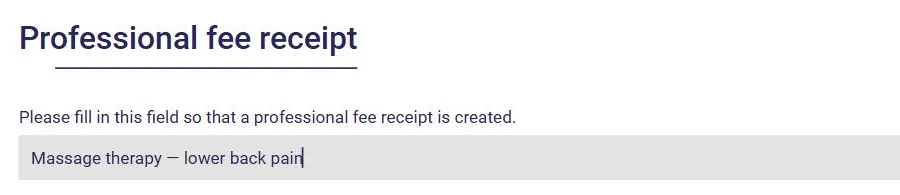
Once the invoice is completed, a Receipt button appears next to the Invoice button:

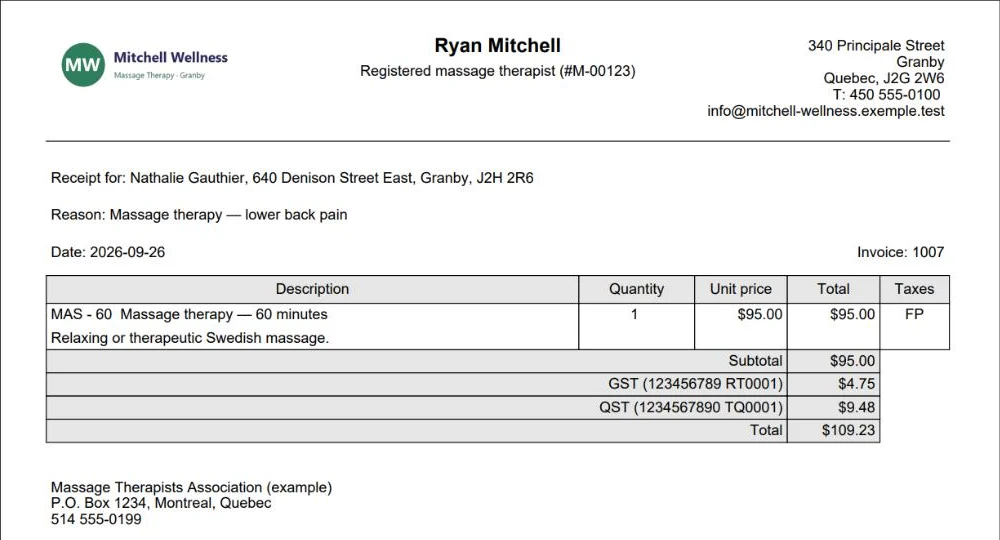
Click it and your receipt opens as a PDF, with your contact information, your title, your member number, the reason for the consultation, the amount and your association's information:
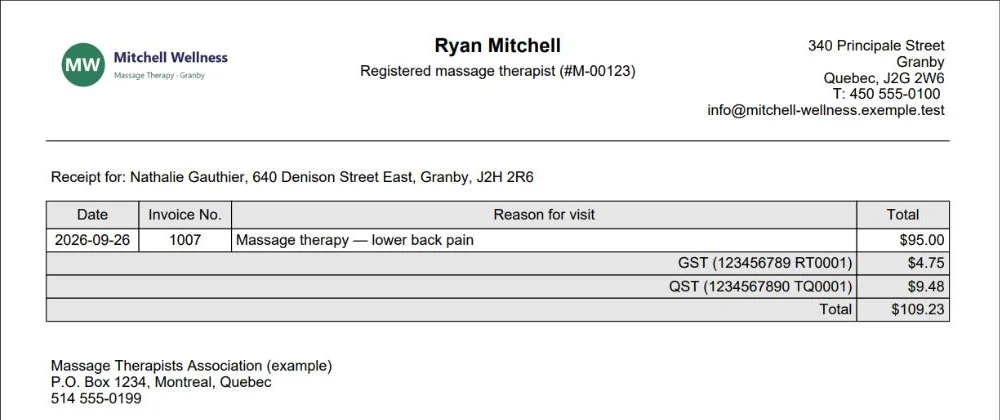
You can save it, print it or email it to your client.
The detailed receipt also lists each service (description, quantity, unit price and applicable taxes). To use it, check the Detailed receipt option in your profile, as shown above:
It's that simple! AssisTime saves you time by producing clear, professional receipts.
Subscribe to our one-month free trial, without commitment!
You will be charmed by the interface and the ease of use!
