

Subscribe to our one-month free trial, without commitment!



It's 10 a.m. Your room is ready, your coffee is getting cold, and your client doesn't show up. No call, no email. You can no longer offer that slot to anyone else, and the next hour of your day is gone.
Every self-employed professional who works by appointment knows this frustration. The good news: most no-shows aren't bad faith. They're forgotten appointments, last-minute surprises, or clients who don't dare cancel. And that can be reduced.
Let's run the numbers with a fictional example. Picture a massage therapist who charges $95 per session and has two no-shows a month, fairly consistently:
And that's only the visible part. Add the time spent calling the client back and rescheduling, plus the stress of a day that doesn't go as planned. Run the same calculation with your own rate and your actual number of no-shows: the total is often higher than you'd think.
Here are five ways to bring that number down. They work with or without software.
This is the simplest and most effective step. A good reminder includes the date, time, address (or virtual meeting link) and how to cancel. Two reminders are often better than one: the first a few days ahead, so the client can rearrange their schedule, and a second the day before. A text gets read quickly; an email can hold more details, such as how to prepare.
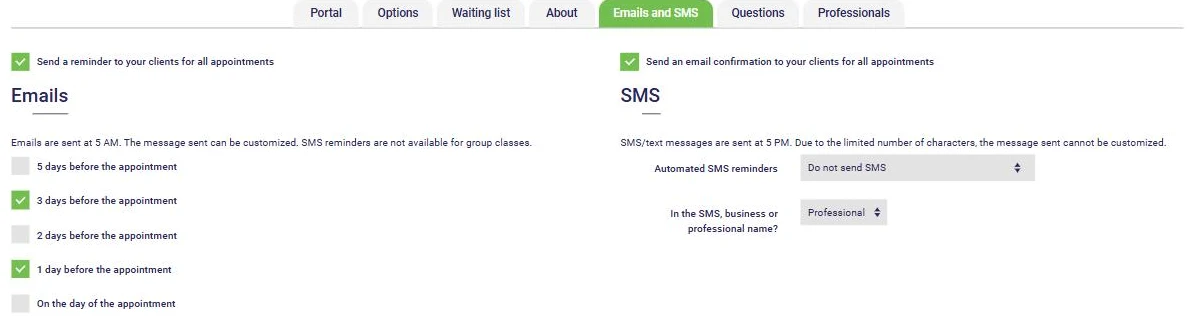
In AssisTime, reminders go out on their own. Under Calendar > Settings > Online appointments, in the Emails and SMS tab, check the email reminders you want (5, 3, 2 or 1 day before, or on the day itself) and choose when to send the text (the day before, or 2, 3 or 5 days before). Emails go out at 5 a.m. and texts at 5 p.m. To learn more about text reminders, read our article on SMS reminders.
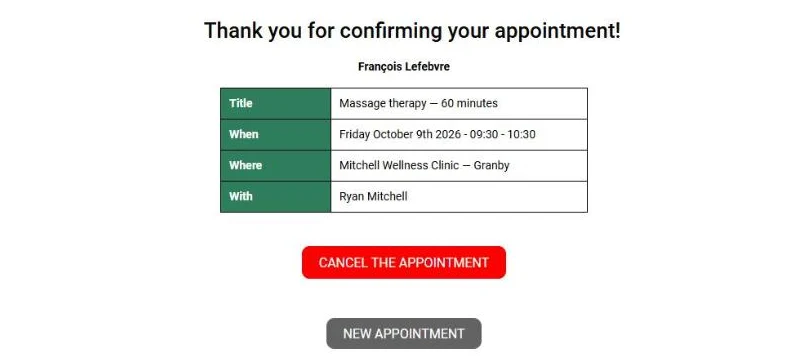
A client who clicked "I confirm" has made a commitment. And a client who doesn't confirm is sending you a signal: maybe that's the person to call the day before.
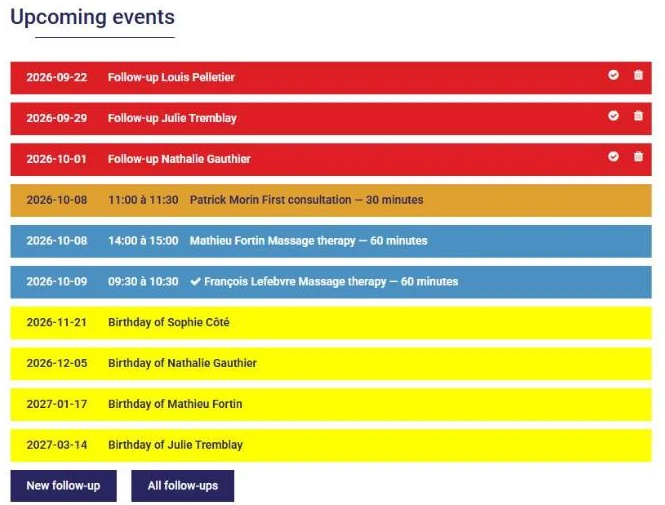
AssisTime reminders include a confirmation link. When the client clicks it, the appointment is marked as confirmed, and a check mark appears next to it in the Upcoming events on your home page. From the same page, the client can also cancel if they can't make it, according to the rules you set (see point 4). A cancellation the day before beats a no-show.
An appointment that's already paid for, or secured by a card, is rarely forgotten. This is especially useful for new clients and long sessions. Be transparent: tell clients clearly at booking what will be charged, and when.
In AssisTime, you set this for each appointment type, under Calendar > Settings > Appointment types. For the question When booking online, is payment required?, you can choose:
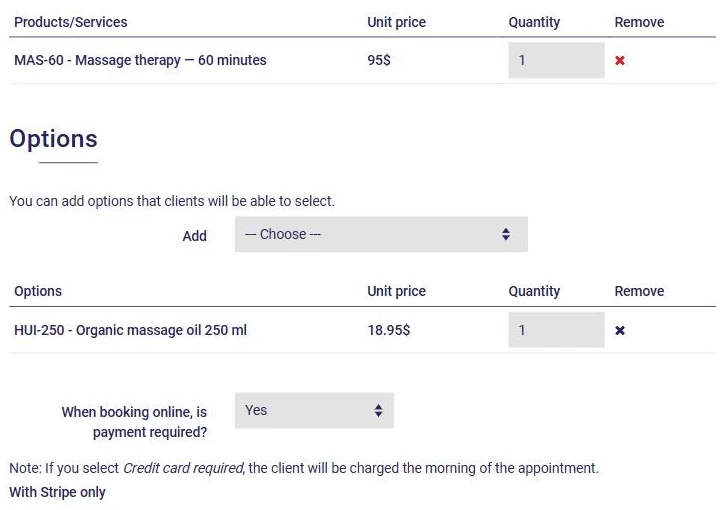
You first need to set up online payments. Our article Your clients can now pay you by credit card explains how.
Many no-shows come from uncertainty: the client doesn't know how late they can cancel, or how. A good policy fits in two sentences: the notice period (24 or 48 hours, for example) and what happens if it isn't respected. Post it on your website, mention it at booking and in your reminders, and apply it consistently. If you plan to charge cancellation fees, first check what your professional order or association allows, and let clients know in advance.
In AssisTime, the Options tab of the Online appointments page lets you decide whether clients can cancel on their own: Yes, No, or Yes, but not within 24h (or 48h). Past that point, online cancellation is no longer offered and the client has to contact you. To repeat your policy in every reminder, add it to the Custom message in the Emails and SMS tab: it appears in all reminder emails.
A last-minute cancellation isn't necessarily a loss if someone is waiting for a spot. Keep a list of clients who want an earlier appointment, with their availability, and call them as soon as a slot opens up.
AssisTime manages that list for you. When no slots are left, clients can sign up for your waiting list from your booking portal (you choose: all clients, existing clients only or new clients only). You'll find it under Calendar > Waiting list. And with the If a client cancels, make the slot available? option, a cancelled slot can be booked online again. All the details are in our article on the waiting list and freed-up time slots.

How many reminders should I send?
Two are usually enough: one a few days ahead and one the day before. Beyond that, clients may stop reading them.
Are text messages more effective than emails?
They complement each other. A text is read almost right away; an email can include the address, instructions and your cancellation policy. Ideally, use both.
Should I charge for no-shows?
That's up to you, but the rule must be announced in advance, applied to everyone and comply with your order's or association's requirements. In many cases, reminders and a clear policy already solve most of the problem.
Reminders, confirmations, payment at booking, cancellation rules and a waiting list: it's all included in the AssisTime Online Appointment Booking module. Try AssisTime for free, then run the numbers again in a few months: how many appointments will you have saved?
Subscribe to our one-month free trial, without commitment!
You will be charmed by the interface and the ease of use!