

Subscribe to our one-month free trial, without commitment!



Passwords can be guessed, stolen and, above all, reused. If you use the same password for your email, an online store and AssisTime, a single leak is all it takes for a stranger to open your client records.
Two-factor authentication solves this. Each time you sign in, AssisTime asks for a 6-digit code in addition to your password, and only you can get that code. Without it, the password alone is no longer enough.
Open Profile > Two-factor authentication and choose:
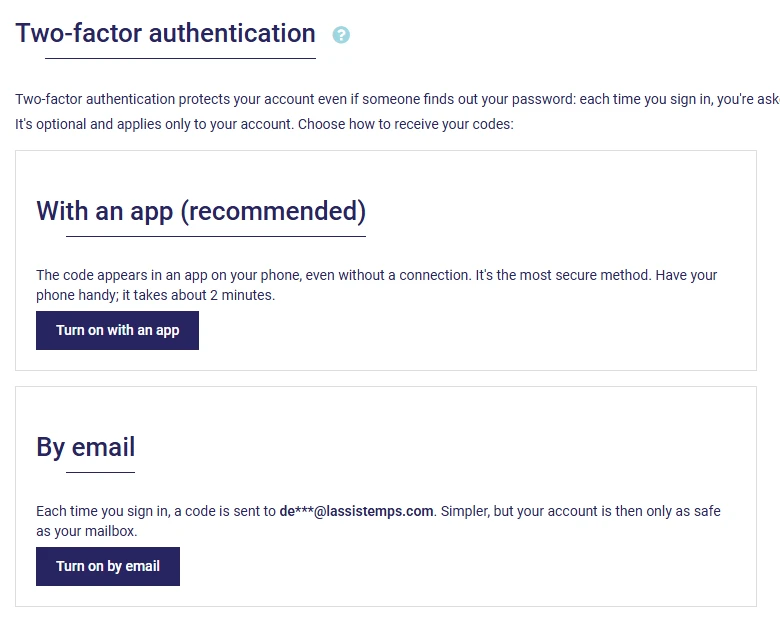
Setup takes about two minutes. It's optional and applies only to your account: your colleagues aren't affected unless the workspace administrator requires it (see below).
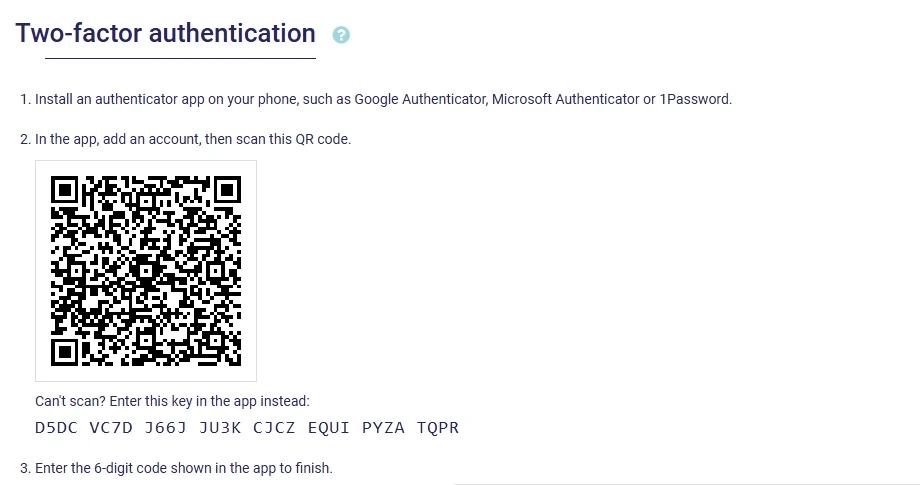
When you turn it on, AssisTime gives you 10 recovery codes. Each one lets you sign in once without your phone. Keep them somewhere safe, in a password manager or on paper: they're shown only once. You can generate new ones at any time, and AssisTime lets you know when you're running low.
Lost both your phone and your codes? Write to us: once we've verified your identity, our team can turn off two-factor authentication for your account.
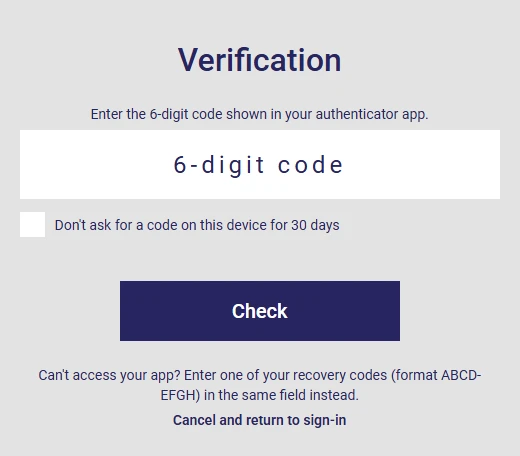
On your office computer, check Don't ask for a code on this device for 30 days when you enter your code. The device becomes a trusted device: it won't ask for a code for a month, even if you sign out.
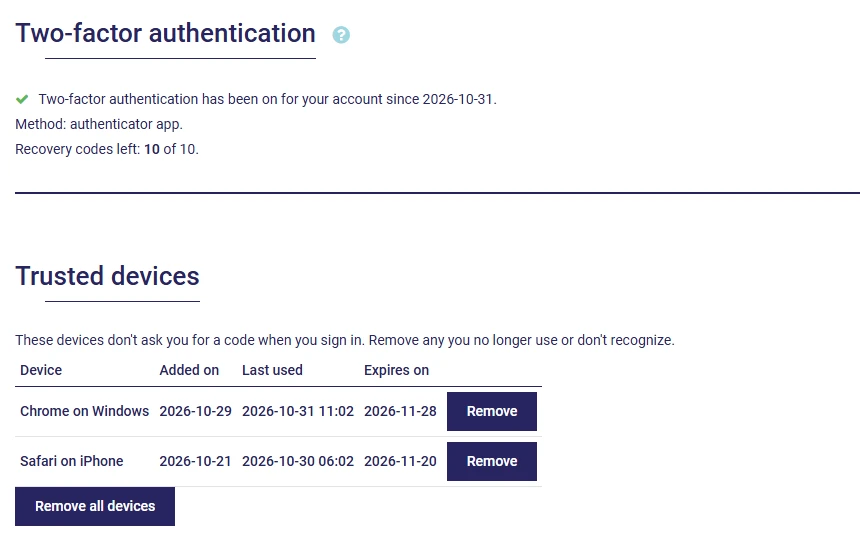
Your trusted devices are listed on the Two-factor authentication page, each with a Remove button. Changing your password removes them all at once.
Whenever a trusted device is added, two-factor authentication is turned on or off, or a recovery code is used, you get an email. If it wasn't you, you'll know right away.
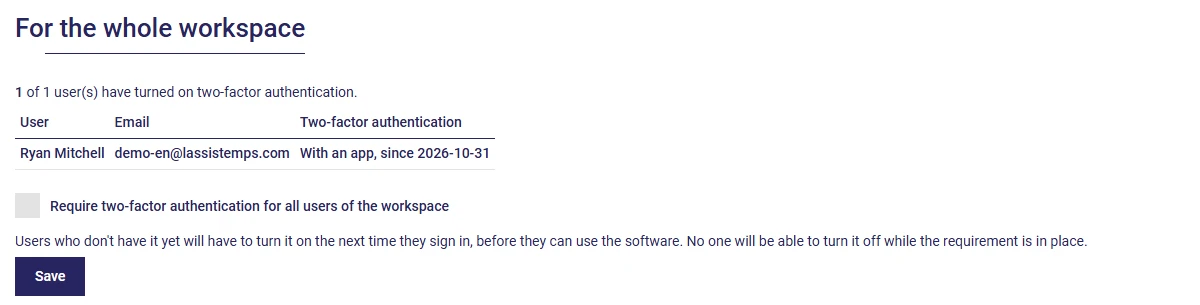
At the bottom of the same page, the workspace administrator sees who has turned on two-factor authentication. They can also check Require two-factor authentication for all users of the workspace. Employees who don't have it yet must then turn it on the next time they sign in, before they can use the software, and no one can turn it off while the requirement is in place.
Your records contain personal information, often about health. Two-factor authentication is a recognized security measure for this kind of data. It adds to what AssisTime already does to protect it: hosting in Canada, encryption of sensitive data, a full backup every 24 hours and, for forms, locking of signed documents.
Is it mandatory? No. Each user chooses whether to turn it on, unless their workspace administrator requires it for the whole team.
I'm changing phones: what should I do? If the old one still works, turn off two-factor authentication, then turn it back on by scanning the new QR code with your new phone. Otherwise, sign in with a recovery code and do the same.
Do my clients need to do anything? No. Two-factor authentication protects your access to the software. The online booking portal and the forms you send your clients don't change.
Turn it on today under Profile > Two-factor authentication. To learn more about how your data is protected, see Why AssisTime and our FAQ. Not a client yet? Try AssisTime for free.
Subscribe to our one-month free trial, without commitment!
You will be charmed by the interface and the ease of use!